
Assessing Student Work with Rubrics
Introduction
Rubrics in Canvas help streamline grading and clarify expectations for students. Once a rubric is created, you can attach it to an assignment and use it within SpeedGrader to evaluate student work. This guide explains how to link a rubric, use it for grading, and how students view results.
A Closer Look
The following sections explain how to attach a rubric to an assignment, use it to grade, and add feedback on individual criteria or the entire assignment.
Linking a Rubric to an Assignment
Once you’ve created a rubric in Canvas, you can link it to an assignment.
- Open the assignment page (do not click Edit).
- Scroll to the bottom and click + Rubric.
- In the rubric window, click Find a Rubric in the top-right corner.
- Select the rubric you want and click Use This Rubric.
- Click the pencil icon to open rubric settings (you do not need to edit the rubric).
- Scroll down and check Use this rubric for assignment grading.
- Click Update Rubric.
If you need to modify the rubric itself, use the Manage Rubrics option instead.
Using a Rubric in SpeedGrader
After linking the rubric to the assignment, you can use it when grading in SpeedGrader.
- Open the assignment in SpeedGrader.
- Under the score box, click View Rubric.
- For each criterion, select the level that best describes the student’s submission.
- The rubric will automatically calculate the score based on your selections.
- Click Save at the bottom of the rubric.
The rubric score will then populate the assignment grade.
Adjusting Points and Adding Feedback
You can customize your evaluation as needed by doing the following:
- Adjusting points: Click the point value for a criterion and enter a different score.
- Adding criterion feedback: Use the comment icon within a criterion.
- Adding overall feedback: Use the Assignment Comments box in SpeedGrader.
You can also provide overall feedback in the Assignment Comments box within the SpeedGrader panel.
Example: How to Adjust Points and Add Feedback
To use a rubric to evaluate student work in Canvas, follow these steps:
- Go to the assignment and open SpeedGrader.
- Under the box to input a score for the student, click View Rubric to open the rubric.
- For each criterion, click the level that best describes the student’s submission. Your selection will be visually highlighted.
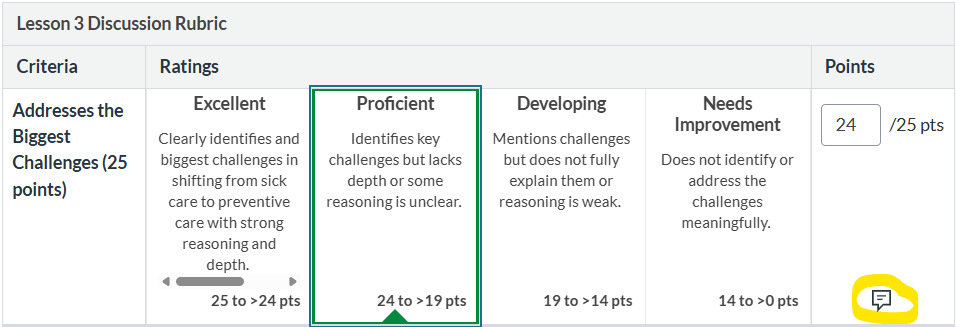
The Proficient rating level is selected for this submission. The option to add feedback for this criterion is indicated by a comment box icon, highlighted in yellow. - If you think the student’s work doesn’t conform to the description as stated for a given criterion, click the comment box icon in the right-most column and enter feedback for that criterion. You can also adjust the points in this column.
- At the bottom, click Save. The score shown in the rubric will then become the score of the assignment.
- You may add overall feedback on the assignment further down in the grading panel in the Assignment Comments box.

Quick Tips for Grading with Rubrics
- Start with the rubric, not the comment box. Open View Rubric first and score each criterion before writing comments. This helps keep grading consistent and reduce bias.
- Use comments on individual criteria sparingly. Add comments only when a score might be unclear or you want to highlight a pattern in the submission, such as repeated spelling errors or consistently strong arguments.
- Avoid regular point overrides. If you keep manually adjusting scores, your rubric criteria may be too vague or may be missing a performance level. Revise the rubric rather than adjust individual scores.
- Look for patterns across submissions. After grading a few students, consider whether many are missing the same criterion. That may indicate the assignment instructions need clarification.
- Save frequently (even if it looks automatic). To be safe, click Save regularly to ensure scores and comments are recorded.
How Students See Rubrics
In your assignment instructions, encourage students to review the rubric before submitting their assignment and after grades are returned. Reviewing the rubric beforehand helps students understand how their work will be evaluated. You might also share the instructions from Canvas on reviewing the rubric on the assignment page.
Before Submitting Assignments
Students can review the rubric on the assignment page by doing the following:
- Navigating to the assignment through the Assignments or Modules tab
- Scrolling to the bottom of the assignment to see the entire rubric
After Grades Are Returned
Students can also view the completed rubric along with their score and your feedback. Your evaluation for each criterion is shown to the student and is visually highlighted. Students can view rubric results for a given assignment by doing the following:
- Navigating to the Grades tab
- Clicking the checklist icon on the far-right side next to the grade for the assignment
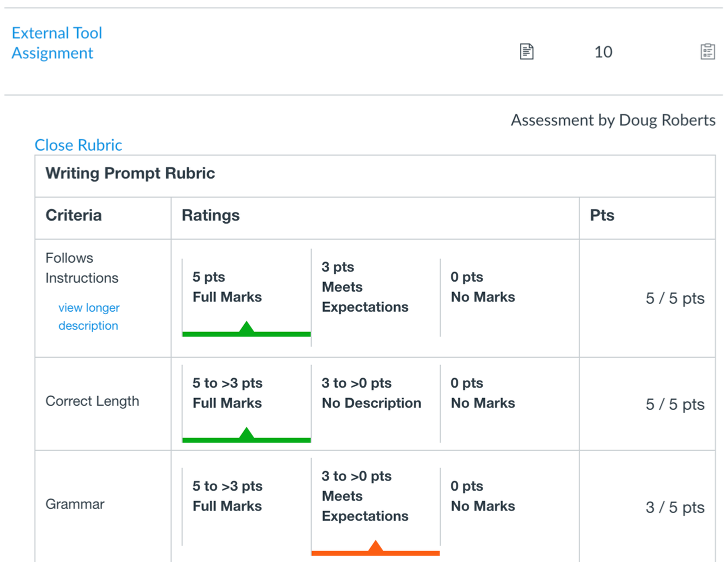
The completed rubric will appear with highlighted ratings, scores for each criterion, and the total score.
Example: Completed Rubric with Three Criteria
Additional Resources
- Rubrics by Canvas
- SpeedGrader by Canvas