
Maintaining Accessibility between Course Revisions
Introduction
When your course is first developed or formally revised, you typically work with an instructional designer (ID) to review and address accessibility. This can involve checking video captions, writing alt text, or remediating PDFs and other course materials to ensure they are accessible. Once that work is complete, accessibility becomes part of your ongoing course maintenance. Between formal revisions, you may want to make smaller updates—with or without the help of an ID—such as replacing an outdated YouTube video or scheduling an announcement in response to current events.
Even though these changes may seem minor, new or updated content can introduce accessibility issues. This tip sheet highlights the accessibility considerations you are most likely to encounter when making these kinds of updates and provides guidance for addressing them. The goal is to help you keep your course accessible throughout the semester and between formal course revisions.
A Closer Look
During the maintenance process, prioritize making accessibility changes to materials that students must complete (such as lectures, assignments, or quizzes) before posting any new content.
The sections below highlight some of the most common accessibility issues to watch for when updating (or adding) content, including whether your content has descriptive hyperlinks, images with alt text, videos with accurate captions, and accessible course files.
Descriptive Hyperlinks
When you add a link to a course page or to an announcement, do not use the URL or generic text like “click here” or “more information” for the link text. Instead, provide meaningful text that alerts readers to the content you are linking to. In most circumstances, the title of the page you are linking to is the best route. Here’s an example:
- Avoid: https://www.epa.gov/environmental-topics/air-topics
- Better: Environmental Protection Agency
- Best: Air Topics (U.S. EPA)
Alt Text for Images
When you add an image or a graphic to a course page or as part of an announcement that is not decorative, it needs to have alternative text accompanying it. Canvas gives you an opportunity to add this text when uploading a picture. You might consider using AI to brainstorm alt-text options, especially for more complex images or graphics. Refer to our Alt Text Tip Sheet for writing high-quality alt text.
Accuracy of Video Captions
One of the more frequent flags that you may see in the course accessibility checker in Canvas is “Video captions appear to be automatically generated and may contain errors.” It can be a time-consuming task to check captions in videos, but for students who rely on captions, it can be a frustrating experience to read through captions with numerous errors. Try spot-checking each video and consider replacing it if the captions are problematic. Refer to our Finding Accessible Videos Tip Sheet for ways to find accessible videos.
Check Files before Uploading: Word Documents and PDFs
Make Content a Canvas Page
Whenever possible, create content as a Canvas page, as Canvas course pages offer the best accessibility. This may include assignments, projects, instructor commentaries, and other course materials.
Or, Make Accessibility Improvements to Word Documents
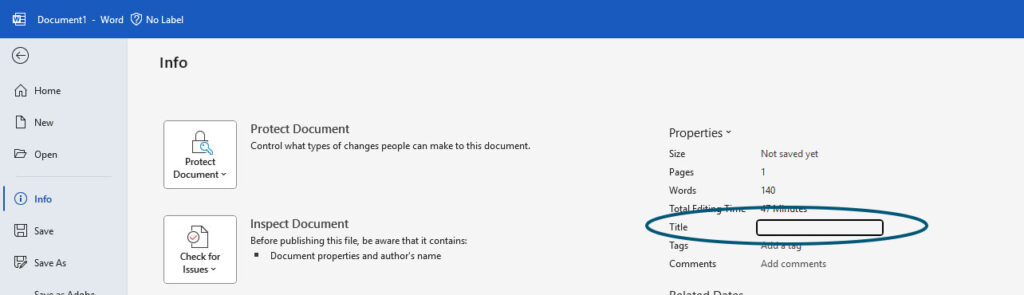
For content that is better suited to a document, such as assignment templates or forms, Microsoft Word may be a better option. At a minimum, Word documents should include a descriptive file title and a clear heading structure created with built-in styles. All images must also include alt text.
Here’s where you would enter a descriptive title for your document:
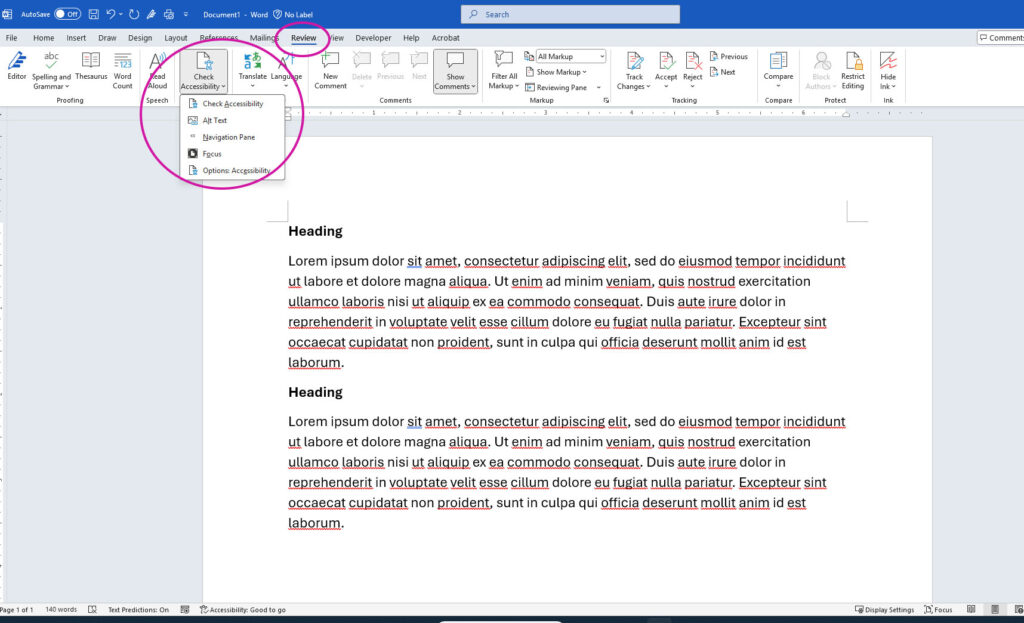
Before uploading a Word document to your course, use Word’s built-in accessibility assistant to identify and fix accessibility issues.
Here is where you can find Word’s accessibility assistant. It’s also available in the bottom-left corner of your document window.
Refer to the “Additional Resources” below for guidance on using heading styles in Word and adding a file title.
Make Content a Canvas Page
Whenever possible, avoid using PDFs. Create assignments, instructor commentaries, and other course content as Canvas pages first, or use Microsoft Word documents as a second option. Making inaccessible PDFs accessible can be challenging and time-consuming, so choosing a more accessible format from the start can save time and effort.
Or, Make Accessibility Improvements to PDFs
In some cases, you may need to use PDFs, particularly for outside readings such as scholarly articles or book chapters. Start by consulting your campus librarian to see if an accessible alternative is available. If you need to use an existing PDF and no accessible alternative is available, follow these steps to improve its accessibility:
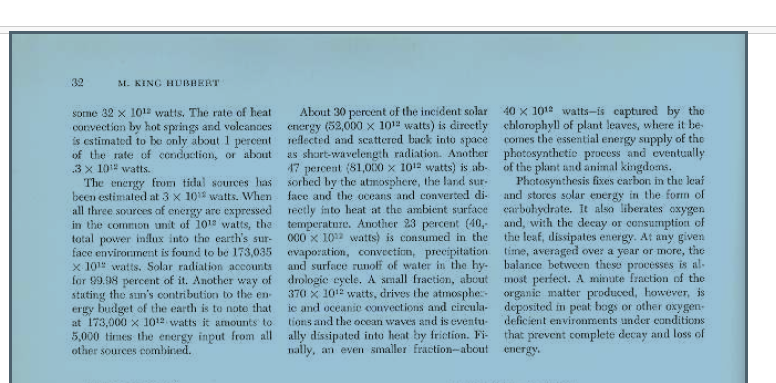
- Check Whether Your PDF Is Image-Based: Some PDFs are image-based, meaning they contain scanned pages or photographs rather than readable text. These often include scanned articles, photographed handouts, or older digitized materials.
- To check whether your PDF is image-based, open it and try to highlight individual words. If you can only select the entire page as one image, the PDF is likely image-based. Screen readers cannot read text in these files unless it has been processed with optical character recognition (OCR).
- To improve accessibility, use Adobe Acrobat to run OCR on the PDF (refer to the free tool under the “Additional Resources”), or work with your campus librarian to find an accessible alternative.
- Check the PDF’s Title and Tags
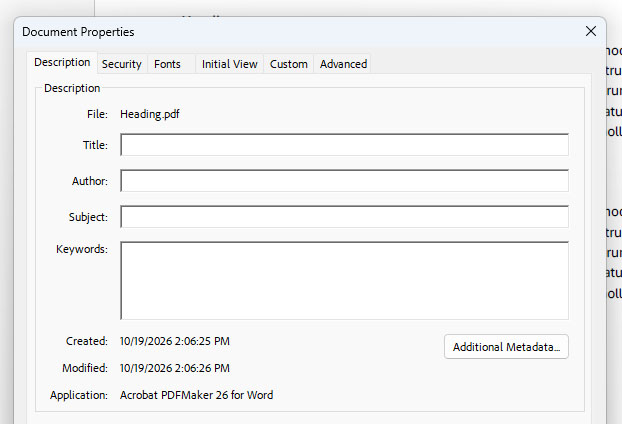
- If your PDF contains selectable text, check that it has a descriptive file title and appropriate accessibility tags.
- To add your title, open your document, then press Ctrl + D or Command + D to bring up the Document Properties window. Add your descriptive document title in the Title field.
-
- To add auto-tags to your PDF, open your document, then go to Tools and find the accessibility tool. Under Prepare for Accessibility, click Automatically tag PDF, then Save.
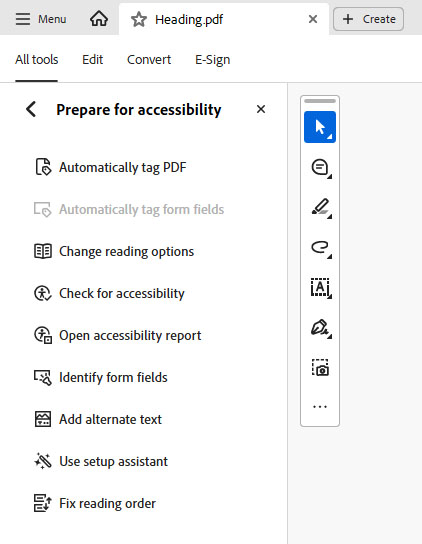
Refer to the “Additional Resources” below for more detailed instructions. You can also contact your ID or campus librarian for help.
Using the Course Accessibility Checker (UDOIT) in Canvas
Writing descriptive links, providing alt text for images, checking the accuracy of video captions, and making changes to Word documents and PDFs will greatly reduce the number of items flagged by the accessibility checker in Canvas and ultimately the risk of non-compliance. To make sure your course is compliant, be sure to run the accessibility checker that is built into your course.
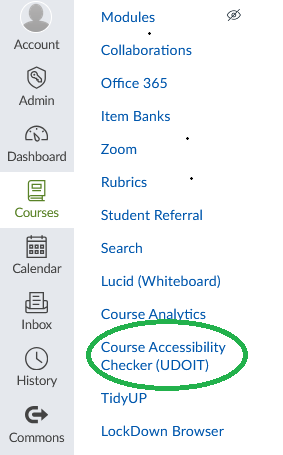
In each of your Canvas courses, you will find UDOIT training videos and the UDOIT User Guide under the Course Accessibility Checker (UDOIT) link in the left navigation bar.

What If I’m Stuck?
If you need help right away, reach out to your instructional designer or your campus librarian. For less-pressing questions, make note of any issues you come across so you can discuss them with your ID when your course is up for revision again.
Additional Resources
- Adding Titles in Microsoft Word and PDFs from Canvas Support
- Applying Styles in Word Documents from Microsoft.com
- Creating Accessible PDFs (scroll down to heading #4, Tag the PDF) from Adobe.com
- Free OCR a PDF Tool from Adobe.com